

Website Help
Register, connect with your players, and find your season’s schedule, roster, and game film.
How to register
You will need an email address you can open and the name of the player you are related to. Membership and player access are separate: creating an account starts the process, and an administrator approves your player connections.
These screenshots use sample information in a local copy of this website. Use your own information. Available seasons, players, opponents, schedules, and videos may differ. Select any screenshot to enlarge it.
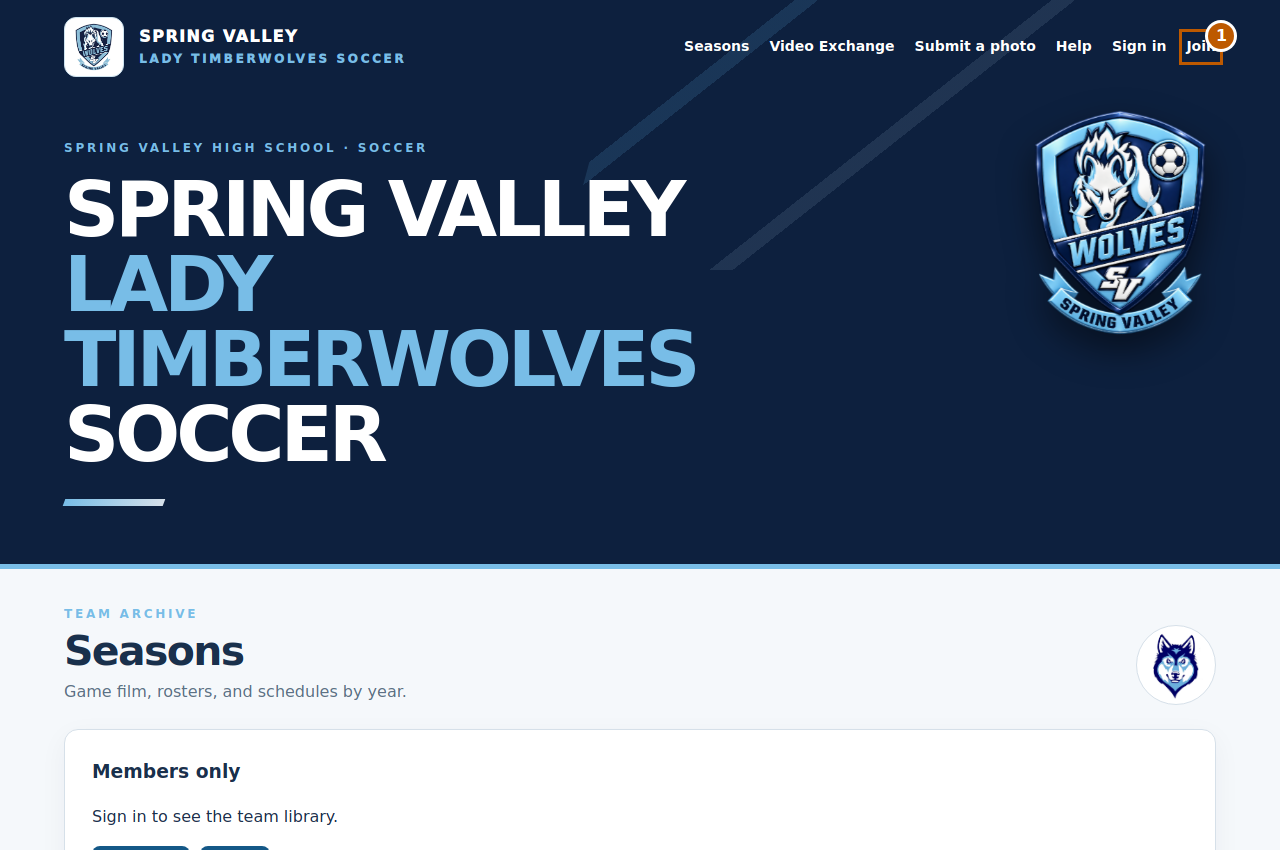
Click Join
Start on the home page. Click Join in the main menu. On a phone, the menu links may wrap onto another line.
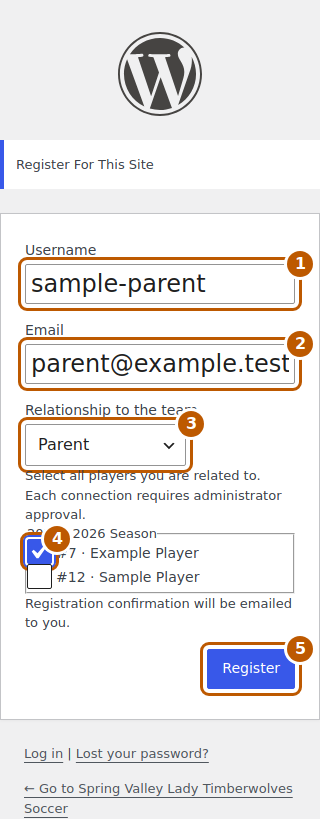
Complete the registration form
Enter a Username and your Email. Choose Parent or Family Member under Relationship to the team. Select the player or players you are related to under the correct season, then click Register. Use your own email address; your password setup link will be sent there.
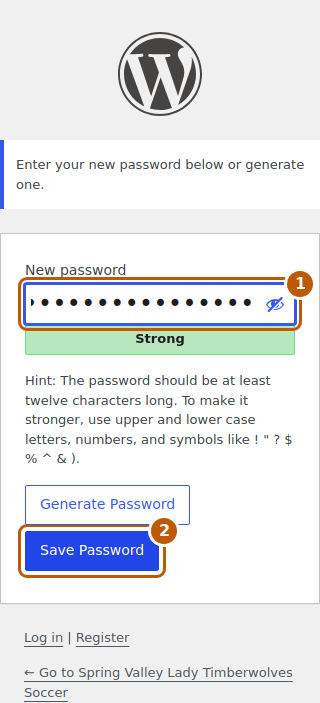
Check your email and set a password
Open the registration email and click its password setup link. Enter a new password, then click Save Password. Check your spam or junk folder if the email is missing. Keep your username and password for future visits.
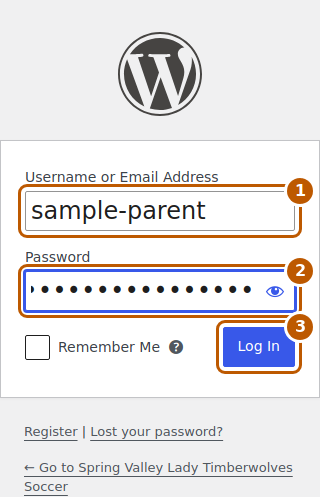
Sign in to the website
Return to the home page and click Sign in. Enter your username or email address and your password, then click Log In. Open Seasons in the menu to return to the team home page if WordPress takes you to your profile.
Connect with a player if needed
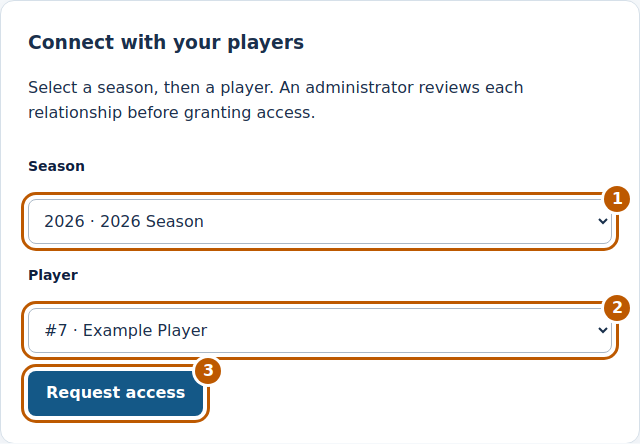
If you selected players when registering, your requests have already been sent. Otherwise, find Connect with your players on the home page. Choose a Season, then select a Player from that season and click Request access. Repeat for another player or season as needed.
Wait for administrator approval
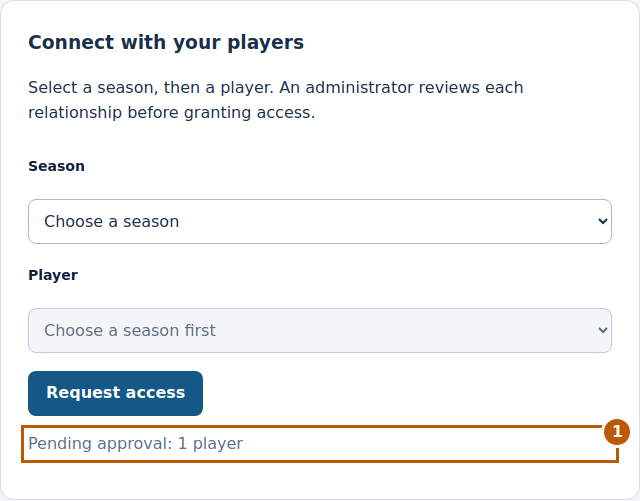
A message such as Pending approval: 1 player means your request is waiting for review. The team administrator must approve each player connection before you can open that season. If access is still pending, contact the team administrator. You do not need to register again.
Open your season
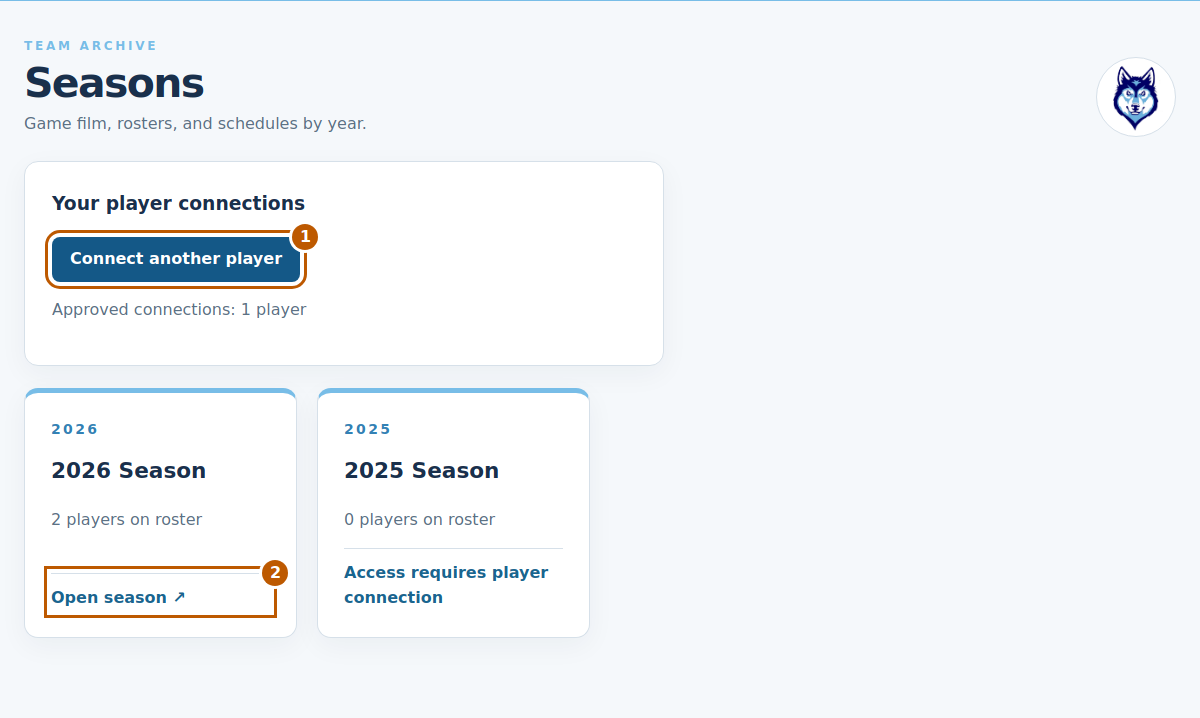
After approval, sign in and click Open season on the season card. You can then view that season’s schedule, roster, coaching staff, and game film. The player connection form stays collapsed; click Connect another player whenever you need to request another connection. To request fewer connections, open Request fewer players, select the players to remove, and click Request removal. An administrator must approve removals too.
Season navigation
Once your player connection is approved, use these sections to follow the season and watch available game film.
Use the Season menu
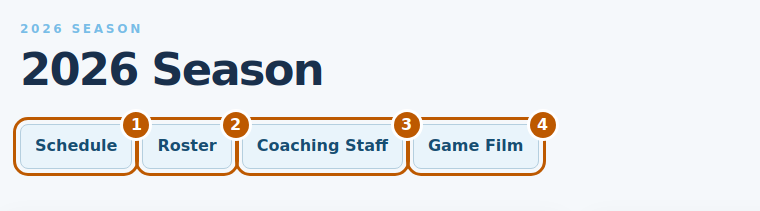
Sign in, select Seasons in the main menu, and click Open season for the year you want. At the top of the season page, Schedule, Roster, and Game Film jump to sections on that page. Coaching Staff opens that season’s staff page. Select Seasons in the main menu whenever you want to choose another year.
Read the schedule and use the camera link
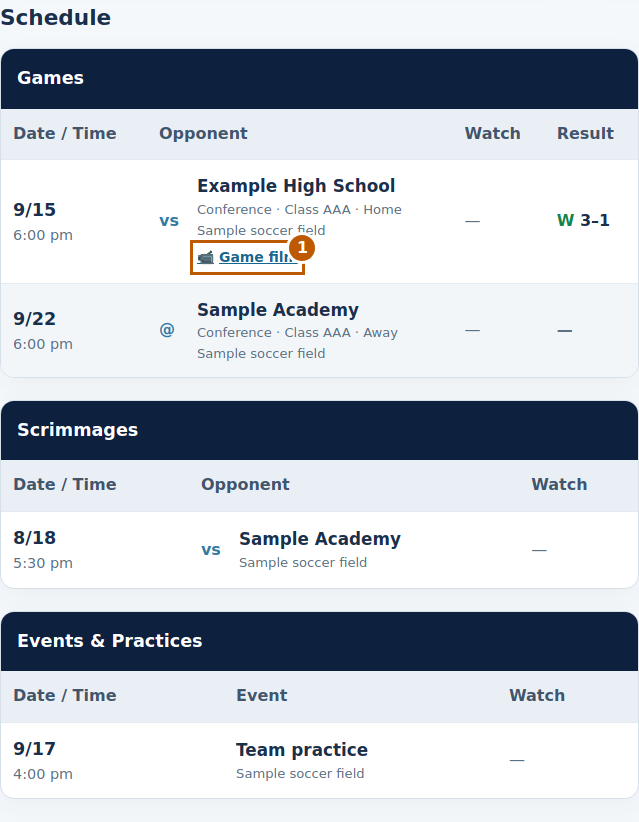
The schedule is divided into Games, Scrimmages, and Events & Practices. Check the date, time, opponent, location, and posted game result. Overall and Conference records and goal totals appear above the schedule. When film is linked to a game, a camera icon (📹) and Game film link appear beneath the opponent’s name. Click that link to open the video player for that game. The icon appears only when a video has been assigned to the game.
View the roster
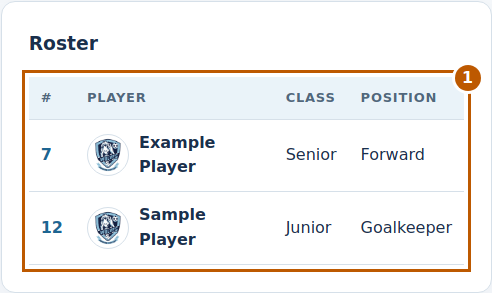
Click Roster in the Season menu to jump to the player list. The roster shows each player’s jersey number, name, class, and position, with a profile photo or the soccer shield. Jersey numbers appear in numeric order. On a wide screen the roster sits beside the schedule; on a phone it appears below the schedule. Each season has its own roster.
Find all available season videos
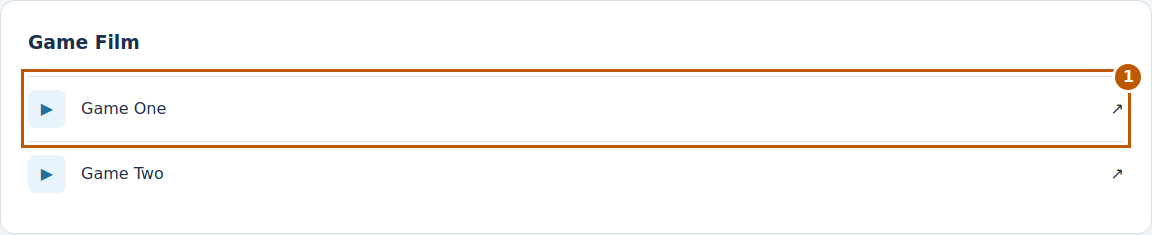
The Game Film section is at the bottom of the season page, below Schedule and Roster. Click Game Film in the Season menu to jump there, or scroll down past both sections. This list shows the videos available in that season’s video folder, including videos that may not have a camera link on the schedule. Click a video’s name or play arrow to open its player, then use the playback controls. The video player page also includes a Download video button. To save a highlight, use Create a clip below the player: mark the start and end, preview the range, then select Save to My Clips or Download clip. Saved clips are private to your account and are listed under My Clips on the season page. Clip downloads record in real time in a supported browser; keep the page visible. If no videos have been added, the section displays a message instead of video links.
Need help?
- My email is already registered.
- Use Sign in instead of creating another account. Select Lost your password? on the login screen if you need to reset it.
- I cannot find my player.
- Check the season first. If the player is still missing, ask the team administrator to confirm the player is on that season’s published roster.
- I am signed in but cannot open a season.
- Your player connection may still be waiting for approval. Look for Pending approval on the home page and contact the team administrator if needed.
- I am a player or coach, rather than a family member.
- Contact the team administrator to set up the correct team role and access.
- I am an opposing coach using Video Exchange.
- Use Video Exchange in the menu with the email approved for your exchange. You do not need to register for a team membership to use that page.
- A game has no camera icon, or I cannot find a video.
- The camera link appears only after a game has film attached to it. Check Game Film at the bottom of the season page for other available videos, then ask a coach or administrator if the film is still missing.